


 Gather the Hostinger Email Account Details
Gather the configuration details of your email account:
IMAP (incoming) | POP3 (incoming) | SMTP (outgoing) |
Host: imap.hostinger.com Encryption: SSL Port number: 993 | Host: pop.hostinger.com Encryption: SSL Port number: 995 | Host: smtp.hostinger.com Encryption: SSL Port number: 465 |
Set Up Hostinger Email on Outlook
First, make sure you have the Outlook application installed on your device.
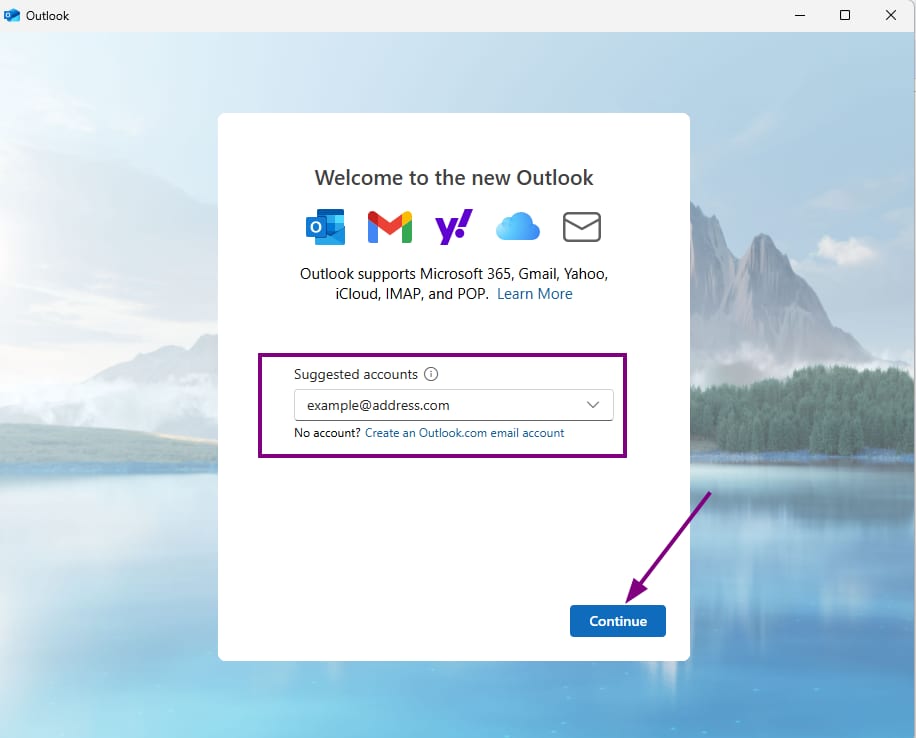
Step 1 – Open Outlook and Start the Setup
Open Outlook.
Click Add Account.
Type your full Hostinger email address (e.g. example@address.com)
Click Continue.
Step 2: Select Account Type
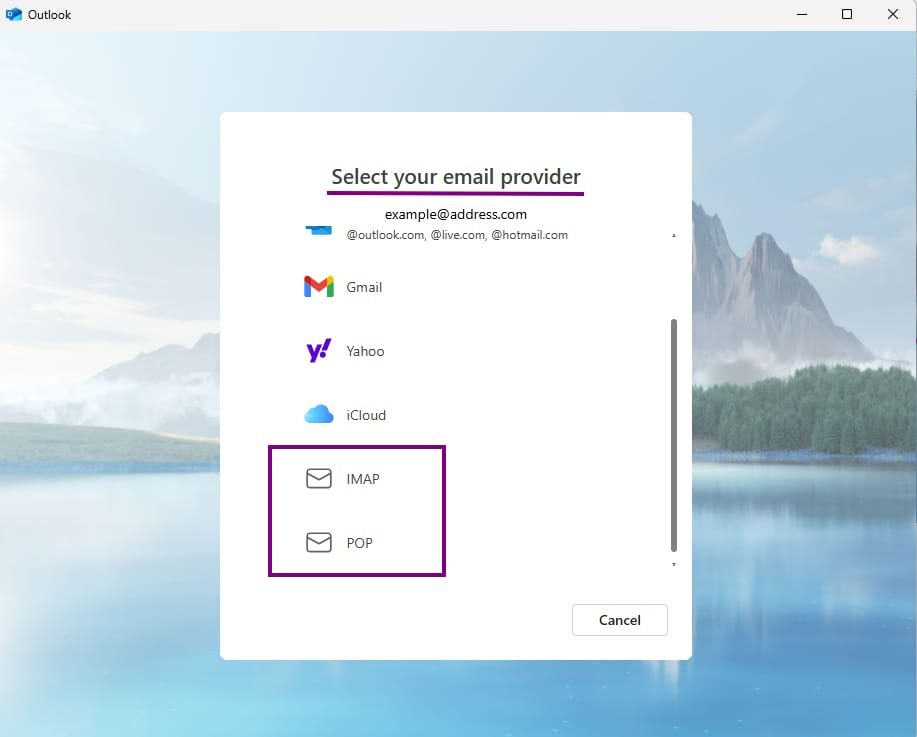
Select your preferred connection type:
IMAP (Recommended) – Syncs emails across all devices
POP – Downloads emails to one device (deletes from original server)
Step 3: Enter Server Settings
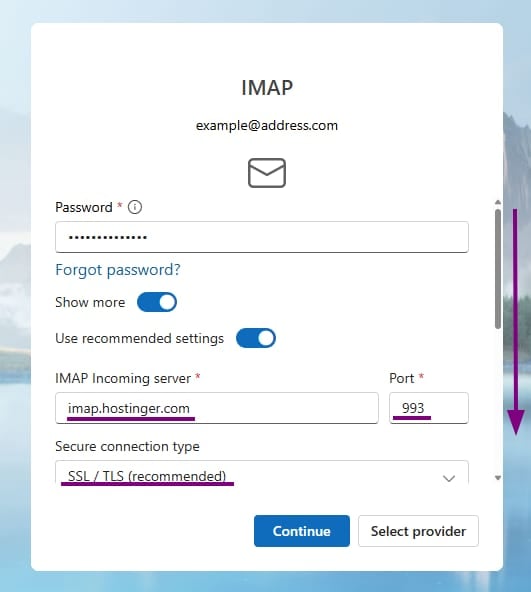
Fill in the server details based on your selection:
IMAP (Recommended)
Incoming server: imap.hostinger.com
Port: 993
Encryption: SSL/TLS
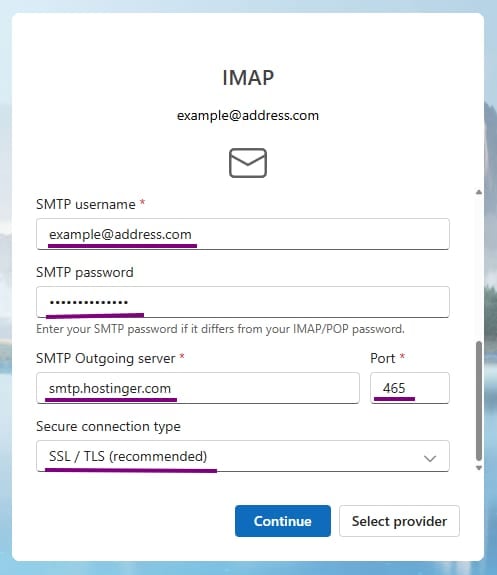
Outgoing server (SMTP): smtp.hostinger.com
Port: 465
Encryption: SSL/TLS
POP (Alternative)
Incoming server: pop.hostinger.com
Port: 995
Encryption: SSL/TLS
Outgoing server (SMTP): smtp.hostinger.com
Port: 465
Encryption: SSL/TLS
Use your full email address as the username, and the password you created for that emai as the password for the setup.
Step 5: Finish Setup
Click Continue to let Outlook test the connection.
Once the test completes, click Done.
 Done!
Done!
Your Hostinger email account is now added to Outlook. You should see it in the sidebar, ready to send and receive emails.
